micro:bitのボタン操作をBLEで伝えてHoloLens内アニメーションさせるメモ
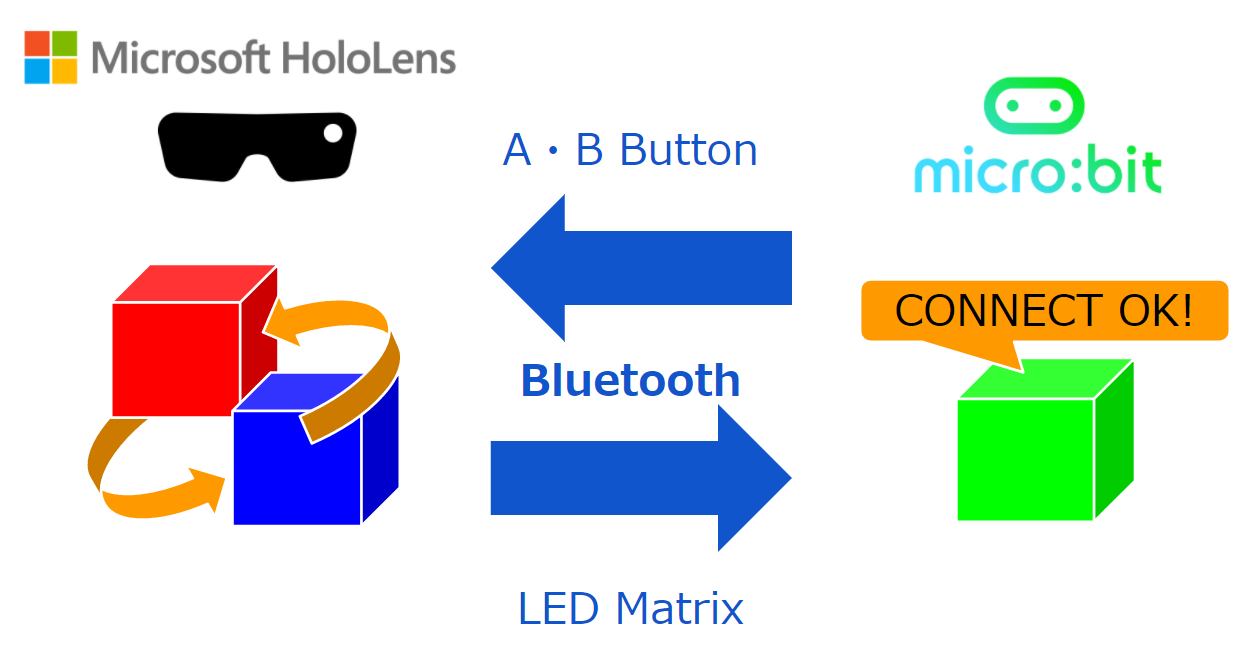
micro:bitのボタン操作をBLEで伝えてHoloLens内では立方体をアニメーションさせるメモです。
やりたいこと
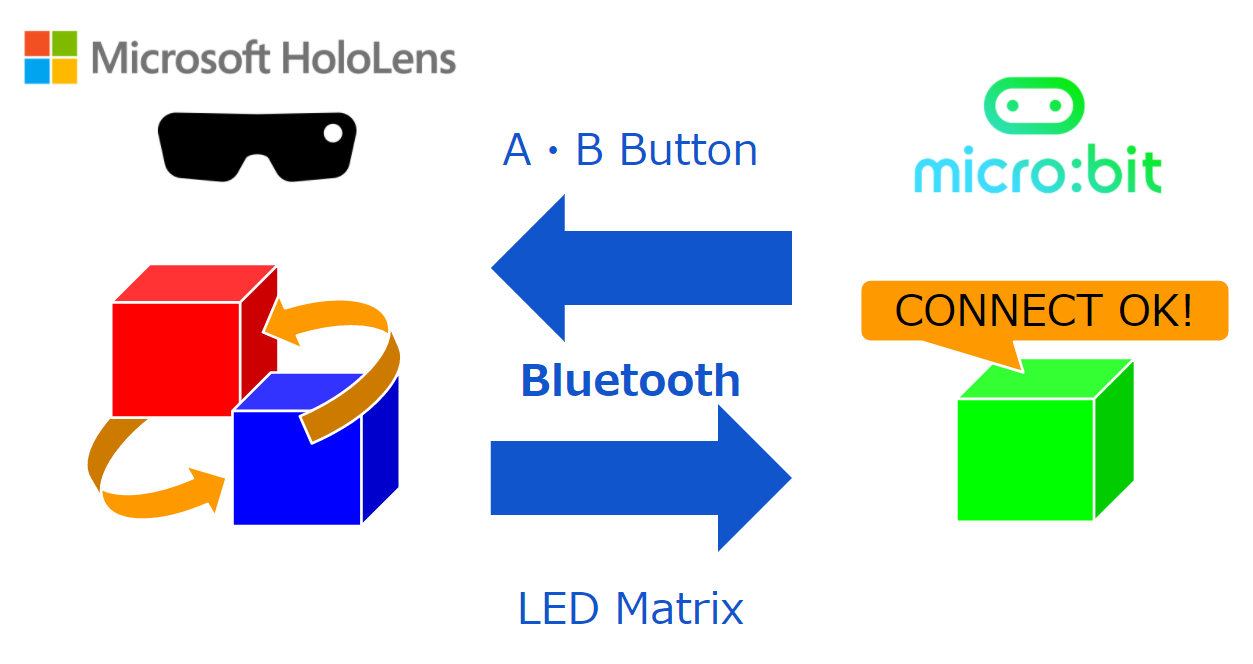
HoloLensからmicro:bitをBLE連携できたので、コンソールの反応だけでなく、実際にアニメーションをつけてみます。
アニメーションとしては、以前の記事の通り、iTweenをつかいます。
Bluetooth SensorTagとHoloLens連携してジャイロセンサー取得するメモ – 1ft-seabass.jp.MEMO
もちろん、Animatorで作りたいところもありますが説明が冗長になるため、スクリプトで書けるiTween方式を踏襲します。
ソースコード
ということで、ソースコードです。こちらを、ある立方体に割り当てておきます。
using UnityEngine;
using System;

#if UNITY_UWP
using System.Runtime.InteropServices.WindowsRuntime;
using System.Threading.Tasks;
using Windows.Devices.Bluetooth.GenericAttributeProfile;
using Windows.Devices.Enumeration;
using Windows.Storage.Streams;
#endif

public class MicroBitConnectCube : MonoBehaviour {

#if UNITY_UWP
    public DeviceInformationCollection gattServices;
    public GattDeviceService gattService;
    public GattCharacteristic charData;
    public GattCharacteristic charDataLED;
    public GattCharacteristic charConfig;
#endif

    private string LED_SERVICE_UUID = "e95dd91d251d470aa062fa1922dfa9a8";
    private string LED_MATRIX_STATE_CHARACTERISTIC_UUID = "e95d7b77251d470aa062fa1922dfa9a8";
    private string LED_TEXT_CHARACTERISTIC_UUID = "e95d93ee251d470aa062fa1922dfa9a8";
    private string LED_SCROLLING_DELAY_CHARACTERISTIC_UUID = "e95d0d2d251d470aa062fa1922dfa9a8";

    private string BUTTON_SERVICE_UUID = "e95d9882251d470aa062fa1922dfa9a8";
    private string BUTTON_A_CHARACTERISTIC_UUID = "e95dda90251d470aa062fa1922dfa9a8";
    private string BUTTON_B_CHARACTERISTIC_UUID = "e95dda91251d470aa062fa1922dfa9a8";

    Vector3 originalPosition;
    Vector3 originalRotation;
    Vector3 originalScale;

    // Use this for initialization
    void Start () {
        // 位置の記録
        originalPosition = this.transform.localPosition;
        originalRotation = this.transform.localRotation.eulerAngles;
        originalScale = this.transform.localScale;

        // 接続待ちアニメーション
        iTween.MoveBy(this.gameObject, iTween.Hash(
            "y", 0.2,
            "time", 1.0,
            "loopType", "pingPong",
            "islocal", true
        ));

        // 接続開始
        ConnectMicroBit();
    }

	// Update is called once per frame
	void Update () {

	}

    /*
     * 接続および準備(今回は1台だけの動作想定)
     *
     * */
    public void ConnectMicroBit()
    {
#if UNITY_UWP
        Task.Run(async () =>
        {
            var selectorButton = GattDeviceService.GetDeviceSelectorFromUuid(new System.Guid(BUTTON_SERVICE_UUID));
            var collectionButton = await DeviceInformation.FindAllAsync(selectorButton);
            foreach (DeviceInformation infoButton in collectionButton)
            {
                Debug.Log(string.Format("Name={0} IsEnabled={1}", infoButton.Name, infoButton.IsEnabled));

                // ボタンサービスへの接続
                var serviceButton = await GattDeviceService.FromIdAsync(infoButton.Id);
                var characteristicsA = serviceButton.GetCharacteristics(new Guid(BUTTON_A_CHARACTERISTIC_UUID))[0];
                var characteristicsB = serviceButton.GetCharacteristics(new Guid(BUTTON_B_CHARACTERISTIC_UUID))[0];
                Debug.Log(characteristicsA.Uuid);
                Debug.Log(characteristicsB.Uuid);
                characteristicsA.ValueChanged += (sender, eventArgs) =>
                {
                    var data = eventArgs.CharacteristicValue.ToArray();
                    // ボタンのON/OFFはBooleanで取得
                    // 押したとき:True 離したとき:False で取得できた。
                    var buttonState = BitConverter.ToBoolean(data, 0);
                    Debug.Log(string.Format("A_BUTTON buttonState : {0}", buttonState));
                    //
                    // 移動する
                    UnityEngine.WSA.Application.InvokeOnAppThread(() => {

                        // 移動
                        iTween.MoveTo(this.gameObject, iTween.Hash(
                            "x", -0.2,
                            "time", 1f,
                            "loopType", "pingPong",
                            "islocal", true
                        ));
                        // 回転
                        iTween.RotateTo(this.gameObject, iTween.Hash(
                            "y", -90,
                            "time", 1f
                        ));
                        // カラー変更 青
                        double a = 1.0f;
                        double r = 1.0f;
                        double g = 0.0f;
                        double b = 0.0f;
                        iTween.ColorTo(this.gameObject, iTween.Hash("a", a, "r", r, "g", g, "b", b, "time", 1.0f));

                    }, true);
                };
                await characteristicsA.WriteClientCharacteristicConfigurationDescriptorAsync(GattClientCharacteristicConfigurationDescriptorValue.Notify);

                characteristicsB.ValueChanged += (sender, eventArgs) =>
                {
                    var data = eventArgs.CharacteristicValue.ToArray();
                    // ボタンのON/OFFはBooleanで取得
                    // 押したとき:True 離したとき:False で取得できた。
                    var buttonState = BitConverter.ToBoolean(data, 0);
                    Debug.Log(string.Format("B_BUTTON buttonState : {0}", buttonState));
                    //
                    // 移動する
                    UnityEngine.WSA.Application.InvokeOnAppThread(() => {

                        // 移動
                        iTween.MoveTo(this.gameObject, iTween.Hash(
                            "x", 0.2,
                            "time", 1f,
                            "loopType", "pingPong",
                            "islocal", true
                        ));

                        // 回転
                        iTween.RotateTo(this.gameObject, iTween.Hash(
                            "y", 90,
                            "time", 1f
                        ));

                        // カラー変更 青
                        double a = 1.0f;
                        double r = 0.0f;
                        double g = 0.0f;
                        double b = 1.0f;
                        iTween.ColorTo(this.gameObject, iTween.Hash("a", a, "r", r, "g", g, "b", b, "time", 1.0f));

                    }, true);
                };
                await characteristicsB.WriteClientCharacteristicConfigurationDescriptorAsync(GattClientCharacteristicConfigurationDescriptorValue.Notify);

                // LEDサービスへの接続
                var selectorLED = GattDeviceService.GetDeviceSelectorFromUuid(new Guid(LED_SERVICE_UUID));
                var collectionLED = await DeviceInformation.FindAllAsync(selectorLED);
                foreach (DeviceInformation infoLED in collectionLED)
                {
                    Debug.Log(string.Format("Name={0} IsEnabled={1}", infoLED.Name, infoLED.IsEnabled));
                    var serviceLED = await GattDeviceService.FromIdAsync(infoLED.Id);
                    var characteristicsLED = serviceLED.GetCharacteristics(new Guid(LED_TEXT_CHARACTERISTIC_UUID))[0];
                    Debug.Log(characteristicsLED.Uuid);
                    charDataLED = characteristicsLED;
                    // 接続できたら「CONNECT OK!」と文字を送る
                    WriteDataMicroBit("CONNECT OK!");

                }

                Debug.Log("connect");

            }
        }
        );
#endif
    }

    /*
     * データの送信
     *
     * */
    public void WriteDataMicroBit(string message)
    {
#if UNITY_UWP
        Task.Run(async () =>
        {
            Debug.Log("message : " + message);

            var dataWriter = new DataWriter();
            dataWriter.WriteString(message);
            var buffer = dataWriter.DetachBuffer();

            var status = await charDataLED.WriteValueAsync(buffer);
            if (status == GattCommunicationStatus.Unreachable)
            {
                // 接続失敗
                Debug.Log("Write failed");
                // 失敗すると縮む
                UnityEngine.WSA.Application.InvokeOnAppThread(() => {

                    // 大きさ
                    iTween.ScaleTo(this.gameObject, iTween.Hash(
                        "x", 0.1f,
                        "y", 0.1f,
                        "z", 0.1f,
                        "time", 0.5f
                    ));

                    // カラー変更 しょんぼりグレー
                    double a = 1.0f;
                    double r = 0.5f;
                    double g = 0.5f;
                    double b = 0.5f;
                    iTween.ColorTo(this.gameObject, iTween.Hash("a", a, "r", r, "g", g, "b", b, "time", 1.0f));


                }, true);
                //
                await Task.Delay(100);
            }
            else
            {
                // 接続成功
                Debug.Log("Write Success!!");

                // 成功するとくるくるする
                UnityEngine.WSA.Application.InvokeOnAppThread(() => {

                    // 大きさ
                    iTween.RotateTo(this.gameObject, iTween.Hash(
                        "x", 90,
                        "time", 2f
                    ));

                    // カラー変更 みどり
                    double a = 1.0f;
                    double r = 0.0f;
                    double g = 1.0f;
                    double b = 0.0f;
                    iTween.ColorTo(this.gameObject, iTween.Hash("a", a, "r", r, "g", g, "b", b, "time", 1.0f));

                }, true);

                await Task.Delay(100);
            }
        });
#endif
    }

}HoloLensからmicro:bitをBLE連携するメモに、iTweenだけ加えたものなので、見比べてみると、追加実装が読み取りやすいかと思います。
動かしてみる
では動かしてみましょう。
HoloLensからmicro:bitがつながったときにアニメーションするほうです。
https://www.youtube.com/watch?v=-bDi_E5wLcA
つづいて、本命のHoloLensからmicro:bitをつないでA・Bボタンで立方体を操作するほうです。
https://www.youtube.com/watch?v=D0iT_h1EOLA
無事動きました!
まとめ
micro:bitのボタン操作でHoloLens内にアニメーションを加えることが出来ました。
前回のコンソールで文字をただ出すだけよりも、Unityの処理との連携度合いが高まり、HoloLens→micro:bitの反応はmicto:bitのLED Matrixから反応が見ることが出来ますし、micro:bit→HoloLensの反応は、今回のように内部のオブジェクトを反応させることが出来るようになりました。双方向の反応重要ですね!
引き続き、色々と試していきます。
それでは、よき micro:bit & HoloLens Life を!