HoloLensからmicro:bitをBLE連携するメモ
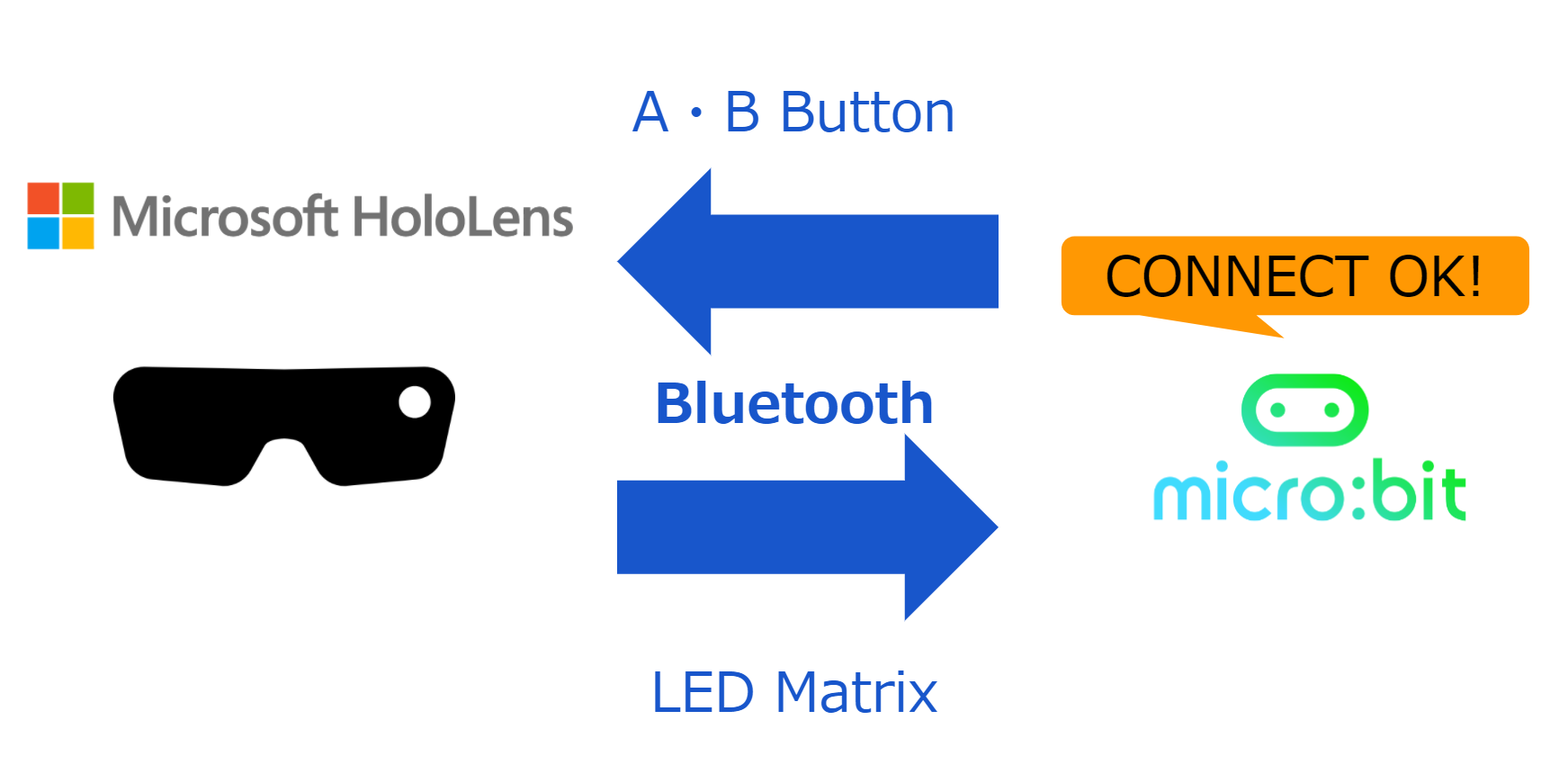
HoloLensからmicro:bitをBLE連携するメモです。
やりたいこと
- micro:bitのBLE LEDサービスにNode.js nobleでWOMBAT!と文字を送るメモ – 1ft-seabass.jp.MEMO
- micro:bitのBLEのA・BボタンイベントをNode.js nobleで取得してみるメモ – 1ft-seabass.jp.MEMO
この知見をもとにHoloLensからmicro:bitを連携してみます。
HoloLens側の準備
micro:bitとHoloLensをBluetoothで接続できたメモ – 1ft-seabass.jp.MEMO
この記事をもとにHoloLensとmicro:bitペアリングを済ませている状態にしておきます。
ソースコード
Bluetooth SensorTagとHoloLens連携してジャイロセンサー取得するメモ – 1ft-seabass.jp.MEMO
こちらの記事を元に、micro:bitのボタンサービスとLEDサービスへのソースコードを書いていきました。
できたのがこちらです。
using UnityEngine;
using System;

#if UNITY_UWP
using System.Runtime.InteropServices.WindowsRuntime;
using System.Threading.Tasks;
using Windows.Devices.Bluetooth.GenericAttributeProfile;
using Windows.Devices.Enumeration;
using Windows.Storage.Streams;
#endif

public class MicroBitConnectCube : MonoBehaviour {

#if UNITY_UWP
    public DeviceInformationCollection gattServices;
    public GattDeviceService gattService;
    public GattCharacteristic charData;
    public GattCharacteristic charDataLED;
    public GattCharacteristic charConfig;
#endif

    private string LED_SERVICE_UUID = "e95dd91d251d470aa062fa1922dfa9a8";
    private string LED_MATRIX_STATE_CHARACTERISTIC_UUID = "e95d7b77251d470aa062fa1922dfa9a8";
    private string LED_TEXT_CHARACTERISTIC_UUID = "e95d93ee251d470aa062fa1922dfa9a8";
    private string LED_SCROLLING_DELAY_CHARACTERISTIC_UUID = "e95d0d2d251d470aa062fa1922dfa9a8";

    private string BUTTON_SERVICE_UUID = "e95d9882251d470aa062fa1922dfa9a8";
    private string BUTTON_A_CHARACTERISTIC_UUID = "e95dda90251d470aa062fa1922dfa9a8";
    private string BUTTON_B_CHARACTERISTIC_UUID = "e95dda91251d470aa062fa1922dfa9a8";

    // Use this for initialization
    void Start () {
       ConnectMicroBit();
    }

	// Update is called once per frame
	void Update () {

	}

    /*
     * 接続および準備(今回は1台だけの動作想定)
     *
     * */
    public void ConnectMicroBit()
    {
#if UNITY_UWP
        Task.Run(async () =>
        {
            var selectorButton = GattDeviceService.GetDeviceSelectorFromUuid(new System.Guid(BUTTON_SERVICE_UUID));
            var collectionButton = await DeviceInformation.FindAllAsync(selectorButton);
            foreach (DeviceInformation infoButton in collectionButton)
            {
                Debug.Log(string.Format("Name={0} IsEnabled={1}", infoButton.Name, infoButton.IsEnabled));

                // ボタンサービスへの接続
                var serviceButton = await GattDeviceService.FromIdAsync(infoButton.Id);
                var characteristicsA = serviceButton.GetCharacteristics(new Guid(BUTTON_A_CHARACTERISTIC_UUID))[0];
                var characteristicsB = serviceButton.GetCharacteristics(new Guid(BUTTON_B_CHARACTERISTIC_UUID))[0];
                Debug.Log(characteristicsA.Uuid);
                Debug.Log(characteristicsB.Uuid);
                characteristicsA.ValueChanged += (sender, eventArgs) =>
                {
                    var data = eventArgs.CharacteristicValue.ToArray();
                    // ボタンのON/OFFはBooleanで取得
                    // 押したとき:True 離したとき:False で取得できた。
                    var buttonState = BitConverter.ToBoolean(data, 0);
                    Debug.Log(string.Format("A_BUTTON buttonState : {0}", buttonState));
                };
                await characteristicsA.WriteClientCharacteristicConfigurationDescriptorAsync(GattClientCharacteristicConfigurationDescriptorValue.Notify);

                characteristicsB.ValueChanged += (sender, eventArgs) =>
                {
                    var data = eventArgs.CharacteristicValue.ToArray();
                    // ボタンのON/OFFはBooleanで取得
                    // 押したとき:True 離したとき:False で取得できた。
                    var buttonState = BitConverter.ToBoolean(data, 0);
                    Debug.Log(string.Format("B_BUTTON buttonState : {0}", buttonState));
                };
                await characteristicsB.WriteClientCharacteristicConfigurationDescriptorAsync(GattClientCharacteristicConfigurationDescriptorValue.Notify);

                // LEDサービスへの接続
                var selectorLED = GattDeviceService.GetDeviceSelectorFromUuid(new Guid(LED_SERVICE_UUID));
                var collectionLED = await DeviceInformation.FindAllAsync(selectorLED);
                foreach (DeviceInformation infoLED in collectionLED)
                {
                    Debug.Log(string.Format("Name={0} IsEnabled={1}", infoLED.Name, infoLED.IsEnabled));
                    var serviceLED = await GattDeviceService.FromIdAsync(infoLED.Id);
                    var characteristicsLED = serviceLED.GetCharacteristics(new Guid(LED_TEXT_CHARACTERISTIC_UUID))[0];
                    Debug.Log(characteristicsLED.Uuid);
                    charDataLED = characteristicsLED;
                    // 接続できたら「CONNECT OK!」と文字を送る
                    WriteDataMicroBit("CONNECT OK!");

                }

                Debug.Log("connect");

            }
        }
        );
#endif
    }

    /*
     * データの送信
     *
     * */
    public void WriteDataMicroBit(string message)
    {
#if UNITY_UWP
        Task.Run(async () =>
        {
            Debug.Log("message : " + message);

            var dataWriter = new DataWriter();
            dataWriter.WriteString(message);
            var buffer = dataWriter.DetachBuffer();

            var status = await charDataLED.WriteValueAsync(buffer);
            if (status == GattCommunicationStatus.Unreachable)
            {
                // 接続失敗
                Debug.Log("Write failed");
                await Task.Delay(100);
            }
            else
            {
                // 接続成功
                Debug.Log("Write Success!!");
            }
        });
#endif
    }

}
少々苦労はしたのですが、特筆すべきは、やはり固有のデータをほどくところでしょう。今回で言うと、ボタンサービスのON/OFFについてはBuffer値が降りてくるのですが、Booleanで取得するために、
var buttonState = BitConverter.ToBoolean(data, 0);
``` で取得できました。
このあたりは、<a href="https://lancaster-university.github.io/microbit-docs/resources/bluetooth/bluetooth_profile.html" target="_blank">micro:bitのBLE情報ページ(Bluetooth Developer Studio - Profile Report)</a>で、にらめっこしながら地道にやるしかないのですが、うまくデータがつながったときの喜びは格別です。
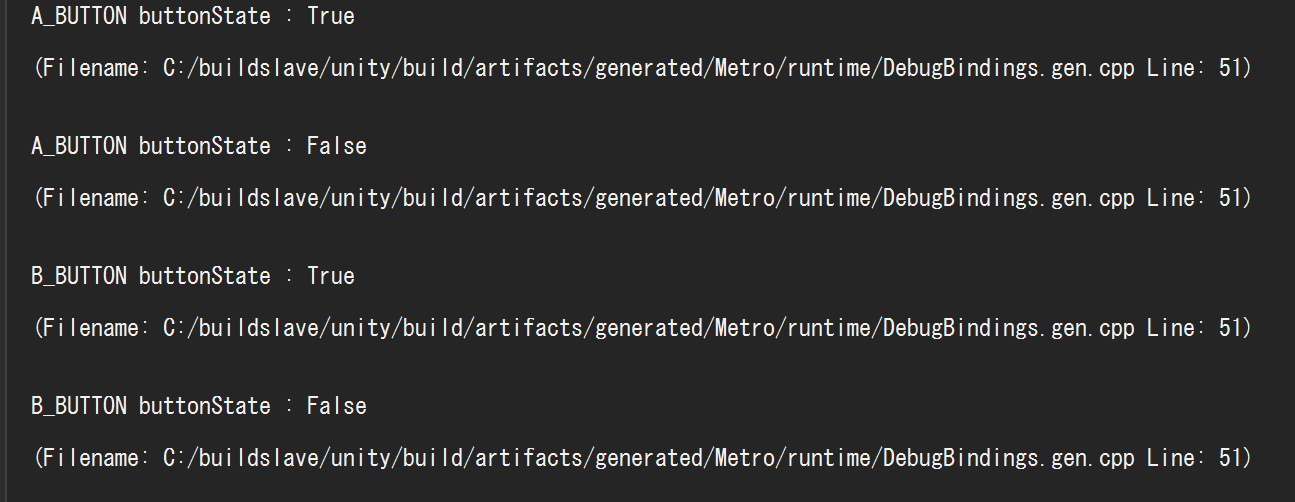
おかげさまで、以下のように押したとき:True 離したとき:False で取得できました。(HoloLensデバック中のコンソールキャプチャ)
## 実際に動かしてみます
HoloLensを起動してみます。
https://youtu.be/fJoasIQtzmc
無事にCONNECT OK!という文字が表示されます。
## まとめ
ようやく、HoloLensからmicro:bitを連携することができました。
実は、HoloLensからBLE操作する上で、ある程度、プログラミングによるカスタマイズができて、BLE通信も手軽に行えるデバイスを探していたのですが、いい感じにつながって良かったです。
ここからまた発展させていきます。
それでは、よき HoloLens & micro:bit Life を!