HoloLensアプリ(Unity)とIFTTT Maker ChannelをHTTP POST連携するメモ
先日、HoloLensのWEBブラウザから連携して可能性は感じましたが、いよいよHoloLensアプリ(Unity)連携していきたいということで、IoTの習いはじめと同じように通信方法を学んで行こうと思っています。
まずは、HoloLensアプリ(Unity)とIFTTT Maker ChannelをHTTP POST連携するメモです。
UnityWebRequestがよさそう
以前はWWWクラスでやり取りした経験はあったのですが、最近はUnityWebRequestという使いやすいクラスがあることを知りました。しかも、UnityでのUWPアプリでも問題なく動く優れもの。
以下の記事を参考に、OrigamiのアプリのSphereCommandsに適用しました。
UnityWebRequestでjsonをpostしたい. - Qiita
ソースコード
ソースコードは以下のとおりです。
using UnityEngine;
using System.Collections;
using System.Text;
using UnityEngine.Networking;

public class SphereCommandsIFTTT : MonoBehaviour
{
    Vector3 originalPosition;

#if UNITY_EDITOR
    // Unity EDITOR でもクリックで動作する
    void OnMouseDown()
    {
        Debug.Log("OnMouseDown");
        OnSelect();
    }
#endif

    // Use this for initialization
    void Start()
    {
        // Grab the original local position of the sphere when the app starts.
        originalPosition = this.transform.localPosition;

        Debug.Log("Start");
    }

    // Called by GazeGestureManager when the user performs a Select gesture
    void OnSelect()
    {
        // If the sphere has no Rigidbody component, add one to enable physics.
        if (!this.GetComponent<Rigidbody>())
        {
            var rigidbody = this.gameObject.AddComponent<Rigidbody>();
            rigidbody.collisionDetectionMode = CollisionDetectionMode.Continuous;

            Debug.Log("OnSelect");

            StartCoroutine(Post("https://maker.ifttt.com/trigger/console_log/with/key/                                      ", "{\"value1\":\"1\",\"value2\":2,\"value3\":3}"));

        }


    }

    // Called by SpeechManager when the user says the "Reset world" command
    void OnReset()
    {
        // If the sphere has a Rigidbody component, remove it to disable physics.
        var rigidbody = this.GetComponent<Rigidbody>();
        if (rigidbody != null)
        {
            DestroyImmediate(rigidbody);
        }

        // Put the sphere back into its original local position.
        this.transform.localPosition = originalPosition;
    }

    // Called by SpeechManager when the user says the "Drop sphere" command
    void OnDrop()
    {
        // Just do the same logic as a Select gesture.
        OnSelect();
    }

    IEnumerator Post(string url, string bodyJsonString)
    {
        Debug.Log("Post: " + url);

        var request = new UnityWebRequest(url, "POST");
        byte[] bodyRaw = Encoding.UTF8.GetBytes(bodyJsonString);
        request.uploadHandler = (UploadHandler)new UploadHandlerRaw(bodyRaw);
        request.downloadHandler = (DownloadHandler)new DownloadHandlerBuffer();
        request.SetRequestHeader("Content-Type", "application/json");

        yield return request.Send();

        Debug.Log("Status Code: " + request.responseCode);

        if (request.isError)
        {
            Debug.Log(request.error);
        }
        else
        {
            // Show results as text
            Debug.Log(request.downloadHandler.text);
        }

    }
}
注意したポイント:Capabilites
Capabilitesのインターネット系をチェックしておきましょう。
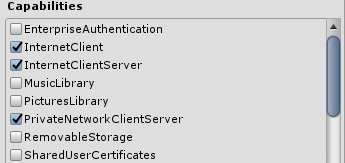
私はチェックし忘れてハマりました。
注意したポイント:シングルクオートだとJSONが不正と400エラー
シングルクオートだとJSONが不正と400エラーで弾かれてしまいます。
"{'value1':'1','value2':'2','value3':'3'}"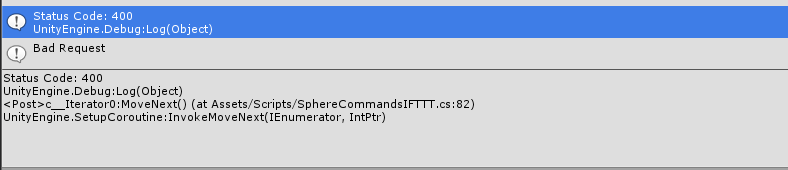
こちらだとIFTTTに弾かれてしまいます。
"{\"value1\":\"1\",\"value2\":2,\"value3\":3}"このようにダブルクオートで、かつ、¥マークでエスケープさせたところうまくいきました。
実際の動作
Origamiのソースを使ったので、AirTapするとすぐに落ちていってしまいますがこのように動作します。
こちらが、IFTTTのMaker Channelに無事送られて、実際にはSlack Channelへメッセージが送られました!
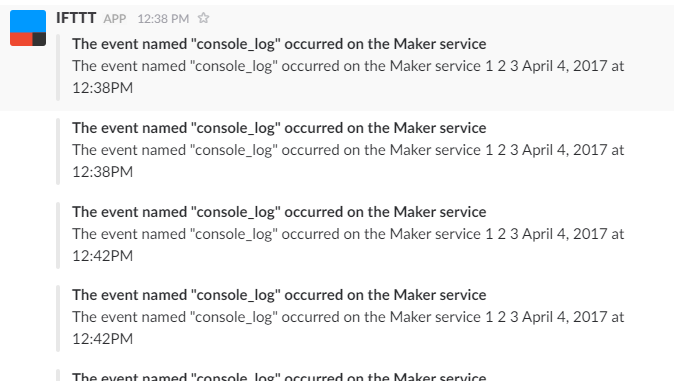
ひとまずHTTP通信ができるようになったので、WEBの知見を上手く活かしてコンテンツを作っていけそうです。
それでは、よき Unity & HoloLens & IFTTT ライフを!